When hiring data sits in spreadsheets, inboxes, and separate tools, it's hard to see where candidates stall or which sources lead to hires. Without that visibility, hiring decisions slow down and depend on whoever has the latest numbers. According to a Korn Ferry survey of 756 HR leaders across more than 50 countries, only 18% of CHROs believe their organization consistently uses data analytics to drive better people-related decisions.
For European hiring teams, the cost of slow visibility is rising. The European Labour Authority's 2025 EURES report on labor shortages and surpluses, published in June 2026, found that labor shortages remain widespread across Europe, affecting nearly all occupations in at least one country.
A custom recruitment dashboard brings your recruitment metrics into one view, so you and your hiring team can spot problems early and decide what to change.
Tellent Recruitee's recruitment analytics includes ready-made board templates and customizable reports that give your team this shared view. Here's how to build a custom recruitment dashboard in the Analytics section of Tellent Recruitee, from your first board to the filters you share with your team.
Key takeaways
-
A custom recruitment dashboard, called a board in Tellent Recruitee, puts the reports your team checks most in one place.
-
You can start from one of eight board templates, then add reports from the Reports library or build your own from scratch.
-
Tellent Recruitee offers four report types: trend, breakdown, single metric, and pipeline.
-
Board filters and visibility settings let each stakeholder see the data that's relevant to them.
-
All plans include pre-built board templates. Creating custom boards requires the Advance or Optimize plan and the Manage report dashboards permission.
-
Reports show you where hiring slows down, but your team decides what to change.
What to include in a custom recruitment dashboard
The right reports depend on the questions your team needs to answer each week. Tellent Recruitee includes a wide library of standard reports across the recruitment funnel, so choose the few that drive action. These metrics are a practical starting point:
-
Time to hire and time in stage, to see how fast candidates move
-
Source effectiveness, to see which job boards and channels bring in the most qualified applicants
-
Conversion rates between pipeline stages, to spot where candidates drop out
-
Top disqualification reasons, to check whether job ads and screening match the role
-
Applications received per job, to see which roles need more sourcing
Which reports matter most depends on your goals.
Create your custom recruitment dashboard
In Tellent Recruitee, dashboards are called boards, and you'll find them under Analytics. You don't have to start from a blank page: eight board templates cover the key areas of hiring, namely jobs, candidates, pipelines, disqualifications, hires, interviews, evaluations, and the careers site. Before you add a template, turn on Show my real data in the preview to see how it looks with your own numbers.
For example, the Disqualifications board gives you a bird's-eye view of disqualifications in your hiring pipelines or talent pools, such as how long it takes to disqualify candidates or which disqualification reasons your team uses most.

The Disqualifications board shows how long it takes to disqualify candidates and which reasons your team uses most.
You can also review your interview events and compare evaluation ratings, or get a quick overview of active jobs per department.
To create a board of your own, go to Analytics and click Add new in the left menu (or Create your first board if you don't have one yet). Then choose Add empty board and fill it with your own reports.

Create an empty board in Tellent Recruitee Analytics and add your own reports.
You can duplicate or delete existing boards, but deleting a board is permanent. Each board has one of three visibility settings: Only me, Selected members (the team members and hiring roles you choose), or Everyone. Custom boards are available on the Advance and Optimize plans, and you need the Manage report dashboards permission to create and edit them.
Sharing a board with a hiring manager gives them access to relevant recruitment reports, subject to their permissions, helping both teams work from a shared view of the hiring process.
Marieke Drees, VP of People at Tellent, has seen what that shared view changes for hiring managers:
After you create a dashboard and name it, you can add reports. You have access to a library of pre-made reports you can work with right out of the box. Or you can start from scratch and build your own.
A common mistake is building one board for everyone. A board that tries to serve recruiters, hiring managers, and leadership at once gets crowded and hard to read. Build one board per audience instead, for example, a weekly pipeline board for recruiters and a monthly hiring overview for leadership. A good board answers one audience's main questions on a single screen.
Add your reports
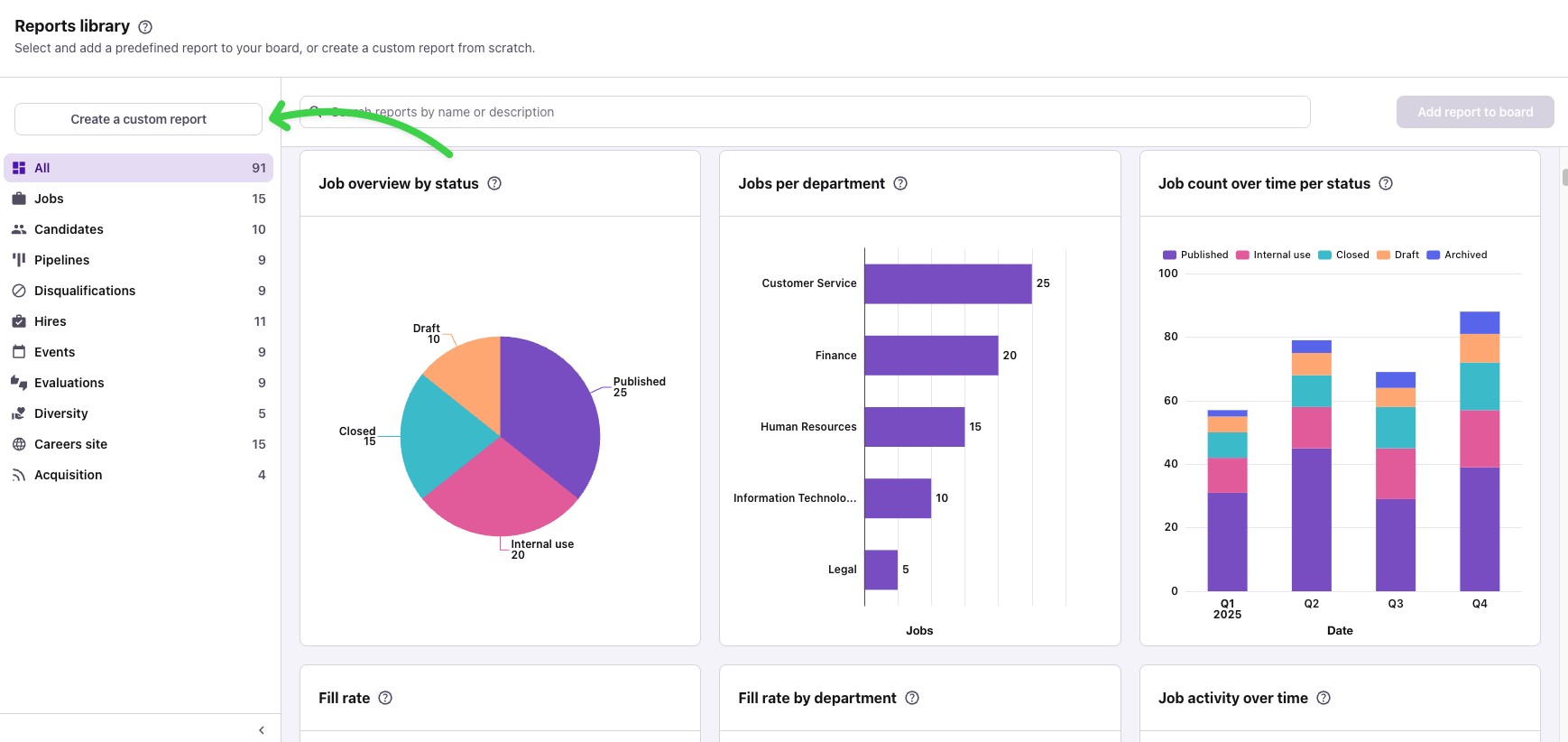
Add reports from the library, or build your own. The Reports library groups ready-made reports by topic.
In the Reports library, you can explore reports based on common questions, such as "What is the total number of applications per job?" and "Where have your candidates been coming from?"
To find a report, browse the categories on the left, such as jobs, candidates, and hires, or use the search bar to find a report by name or description. Select the reports you want and click Add report to board.
Choose a report type when you build a custom report from scratch.
If you can't find the report you need, click Create a custom report to build one from scratch. Your first step is to pick one of four report types:
Trend reports
With Trend reports, you can view changes in your data by week or month. It's a useful report for when you want to see, for example, how many candidates your team disqualified over time or how many hires you made in each job.
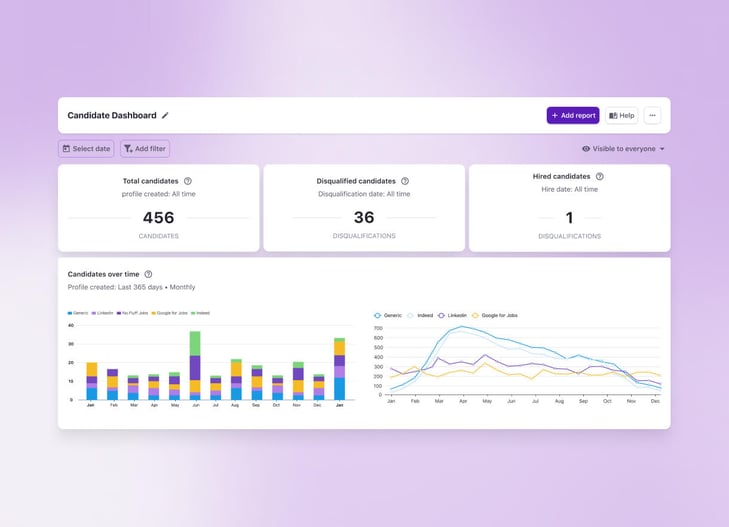
A trend report shows how a metric changes over time.
Breakdown reports
This report lets you view essential metrics grouped by categories such as job and department. You can use this report to see how candidates in your pipeline spread across stage categories (such as phone interview or evaluation). You can also, for example, view the total number of applications per job.
Good to know: You can choose to exclude deleted candidates' anonymized data from the results.
Single metric reports
Use this report to view single values that are key to your business goals. Examples include the average time candidates in all jobs spend in any stage category and how long it takes to hire a candidate across all jobs.
A single number means more when you have something to compare it with. Tellent's State of Hiring in 2025 report gives regional time-to-hire benchmarks, measured from job posting to hire, that you can hold your own figure against. Treat them as a reference point rather than a target, because industry and role mix also change how long hiring takes.
|
Region |
Average time to hire (days) |
Interviews per hire |
|---|---|---|
|
Benelux |
37.1 |
5.5 |
|
DACH |
38.1 |
5.9 |
|
France |
39.1 |
7.9 |
|
Rest of world |
46.3 |
10.7 |
Pipeline reports
Pipeline reports focus on your candidates' progress through your pipelines. Use them to see where candidates move forward and where they get stuck between stages.

A pipeline report shows where candidates move forward and where they get stuck.
You can edit, duplicate, or delete the reports you add to a board, open them in fullscreen, or move them to another board.
Customize a report or build one from scratch
You can customize a report from the library or start from a blank canvas. Give your report a title and description, click on a metric, choose a date range, and group your data the way you want.
-
Choose a metric, date range, and grouping to customize a report.
-
Choose how to display your data: as a chart (bar, line, or pie, depending on the report type), a data table, or a summary.
-
Open the details behind a report to dig deeper into your data.
-
Click a number or chart section to open the table behind it and dig deeper into your data.
Avoid setting a different date range on every report. When the periods don't match, the numbers on one board can't be compared. Set the date range and filters at board level instead, because a board filter replaces any filter of the same kind saved on an individual report.
Arrange, filter, and export your recruitment dashboard
Arrange your board to highlight your most important reports. To group related reports or keep critical ones at the top, drag a report to a new position and resize it by dragging its bottom-right corner.
Filter the whole board by date range, department, hiring manager, job, recruiter, or talent pool for a more detailed overview of your hiring. Not every report supports every filter.
When you need to share results with people outside Tellent Recruitee, export a single report or the entire board as a PNG, CSV, XLSX (Excel), or PDF file. You need the Export data permission to download reports and boards.
If you need more customization, Tellent Recruitee's Amazon Redshift integration gives you access to the raw data in your account, so you can analyze it in the business intelligence (BI) tool of your choice, such as Tableau, Looker Data Studio, or Power BI. The integration is available on the Optimize plan, and the data refreshes automatically once a day, overnight.
Turn your custom recruitment dashboard into better hiring decisions
A board won't fix a slow process on its own. It shows where candidates stall, which sources lead to hires, and how each stage performs, so you and your hiring manager work from the same numbers when you decide what to change. First, fix the process and agree on who owns each step, then check the board to see whether the change worked.
Start with one board built around the question your leadership asks most, such as time to hire, and share it with the people who can act on it.